Drop your photo here or click to upload
JPG · PNG · WEBP | Max 20 MB
💡 Tip: Copy an image (or screenshot with Win+Shift+S) and press Ctrl+V to paste it here.
How to Split a Photo Into a Grid for Instagram
Magic Photo Splitter cuts one photo into equal pieces — a 3-panel strip, a 3×3 or 4×4 grid — so you can post it across multiple Instagram tiles and have it read as one image on your profile.
Upload Your Photo
Drag and drop a photo, or click "Choose File." JPG, PNG, and WEBP are supported, up to 20 MB.
Pick a Grid Size
Choose 2, 3, 4, 8, 9, or 16 pieces. A live grid-line preview shows exactly how your photo will be cut.
Split & Download
Click Split & Download to get a ZIP file with every numbered piece, ready to upload to Instagram in order.
🔒 100% Private — Your photo never leaves your device
Splitting happens entirely in your browser using the Canvas API. Nothing is uploaded to a server at any point.
🎯 Tips for a Great Instagram Grid Post
Upload in reverse order
Instagram shows your newest post first. To make a grid appear correctly on your profile, upload the last piece first and the first piece (top-left) last.
Post back-to-back
Publish all the pieces within a short window so other posts don't land in between and break up the grid.
Start with a square photo
A 1:1 source photo divides cleanly into square tiles for the 4, 8, 9, and 16 grids. Crop to square first if your photo isn't already.
2 and 3 splits make strips, not squares
The 2-cut and 3-cut presets divide the photo into vertical strips — the classic wide "panorama across the grid" look — rather than a square grid.
Check the seams before posting
Instagram's own crop and spacing can shift slightly by device. Preview your profile grid after posting the first couple of pieces to confirm alignment.
Chain it with other tools
Need to remove hidden location data from the photo first? Run it through Magic Metadata Remover before splitting.
🧩 What You Get in the ZIP — A Real 3 × 3 Split
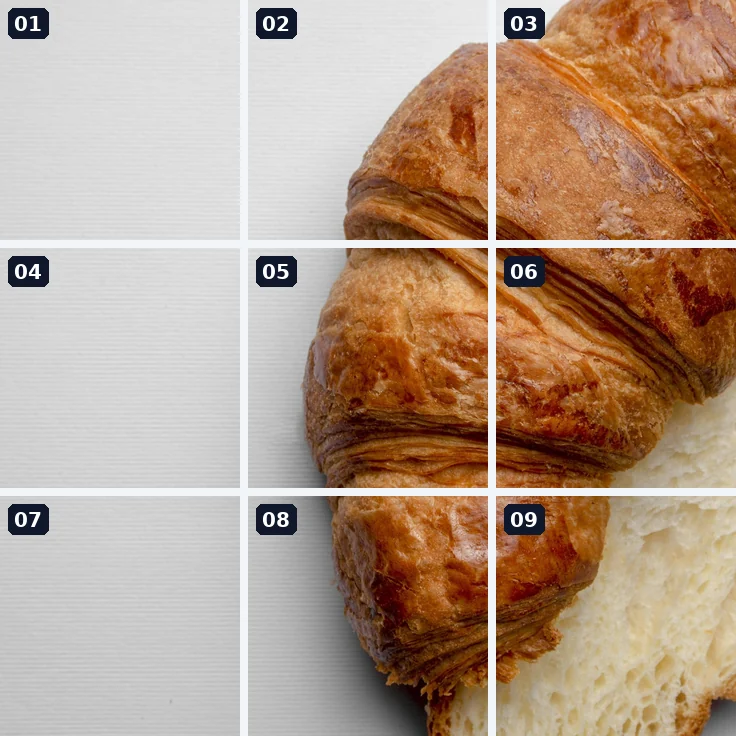
We split one 2250 × 2250 px photo (a 1 MB JPG) with every grid size at 1× and 2× output. The image below is the real 9-piece ZIP, laid out the way the pieces sit in the original photo.
| Grid | Piece at 1× | ZIP at 1× | Piece at 2× | ZIP at 2× |
|---|---|---|---|---|
| 3 pieces (1 × 3) | 750 × 2250 | 992 KB | 1500 × 4500 | 2.22 MB |
| 4 pieces (2 × 2) | 1125 × 1125 | 994 KB | 2250 × 2250 | 2.25 MB |
| 9 pieces (3 × 3) | 750 × 750 | 998 KB | 1500 × 1500 | 2.25 MB |
| 16 pieces (4 × 4) | 563 × 563 | 923 KB | 1125 × 1125 | 2.31 MB |
- 1× keeps your original pixels. A 3 × 3 split of a 2250 px photo gives nine 750 px squares, and the ZIP is about the size of the source file (also roughly 1 MB).
- 2× and 3× only enlarge each piece. The ZIP grew 2.3 times (998 KB to 2.25 MB for the 3 × 3 split) but no new detail appears. Use them only when a site demands a minimum pixel size.
- Pick a photo whose subject crosses the cuts. In this example the left column is empty background, so pieces 01, 04 and 07 look blank on a profile. Placing the subject near the middle gives every piece something to show.
- Post in reverse. Because newest posts appear first, upload 09 first and 01 last so the grid reads correctly.
Frequently Asked Questions
2, 3, 4, 8, 9, and 16 pieces. 2 and 3 split the photo into vertical strips (the classic Instagram 2-cut and 3-cut look), while 4, 8, 9, and 16 split it into a square grid (2×2, 2×4, 3×3, and 4×4).
Instagram profiles fill left-to-right, top-to-bottom, but newest posts appear first. So for a grid to look correct on your profile, upload the pieces in reverse order — starting with the bottom-right piece and finishing with piece 1 (top-left) posted last.
No. The photo is read and split entirely in your browser using the Canvas API. Nothing is sent to a server at any point.
No. Each piece is cropped directly from the original pixel data at full resolution — there's no re-compression beyond the normal PNG encoding of the output files.
Yes. The grid lines divide your photo's actual width and height evenly, whatever its aspect ratio. For the cleanest Instagram grid, a square (1:1) source photo works best.
Yes. Use the "Output size" buttons to scale the photo 2× or 3× before it's split — useful if your source photo is small. Use the "Save as" dropdown to choose PNG, JPG (92% quality), or keep the same format as your original upload.
Yes — no account, no upload, no watermark, no limit on how many photos you split.