"Free online file converter" covers two genuinely different things under the hood, and most sites don't make the distinction obvious. Some process your file entirely inside the browser tab you're already looking at. Others quietly upload it to a server, do the work there, and send back a result. The end output can look identical — but what happens to your file in between is not the same at all.
What "server upload" actually means
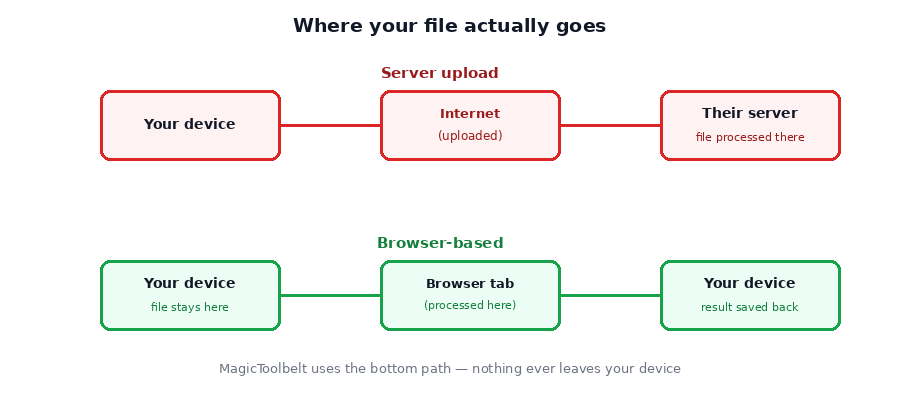
When a tool uploads your file, it leaves your device entirely and travels over the internet to a server you don't control, run by whoever operates the site. The file sits there — however briefly — while it's processed, and depending on the site's practices, it may be logged, cached, or retained for some period afterward. You're trusting that site's stated privacy policy (if it has one) to know what actually happens to it.
What "browser-based" (client-side) processing means
A browser-based tool runs the actual conversion, compression, or editing logic as JavaScript executing in your browser tab, using your device's own processor and memory. The file is read from your disk, transformed in memory, and written back out — all without a network request carrying the file anywhere. The server only ever delivered the page's code, not your data.
| Server upload | Browser-based | |
|---|---|---|
| Where the file travels | Sent to a remote server | Stays on your device |
| Works offline after page loads | No | Yes |
| Speed for small-to-medium files | Limited by upload speed | Limited by your device's processor |
| File size ceiling | Often higher (server-side power) | Bounded by browser memory |
How to actually check which one you're using
You don't have to take a site's word for it. Load the tool's page, then disconnect from Wi-Fi entirely, and try processing a file. If it still works with no connection, the processing is genuinely local. If it errors out or hangs indefinitely, your file was headed to a server that's now unreachable.
Why this isn't just a privacy footnote
For files that don't matter — a random test image — the distinction is mostly academic. For anything with actual content you'd rather not hand to a third party (financial documents, photos with people in them, business files, anything under an NDA) it's a real, practical difference, not just a marketing point.
Every tool on MagicToolbelt processes files this way — locally, in your browser, with nothing uploaded — which is also why you can use them with your Wi-Fi off once the page has loaded.
→ Browse all MagicToolbelt tools — every one runs in your browser, nothing is uploaded.Frequently asked questions
How can I tell if a tool processes files in the browser or uploads them?
A quick check: turn off your Wi-Fi after the page has loaded, then try running the tool on a file. If it still works, processing is happening locally in your browser. If it fails or hangs, the file is being sent to a server.
Is upload-based processing always worse?
Not necessarily — some tasks, like large-scale AI processing, genuinely need more computing power than a browser tab can provide. The distinction is about privacy and control, not automatically about quality.
Why do browser-based tools have file size limits at all?
Because processing happens using your device's own memory and processor instead of a server's, very large files can be slow or hit browser memory limits — the cap exists to keep the tool responsive on typical hardware.
Do browser-based tools still need an internet connection?
To load the page initially, yes. But once the page and its code have loaded, the actual file processing itself doesn't require an active connection.
Wondering if a PDF specifically is safe to run through an online tool? Our guide on uploading PDFs online looks at that exact question in more detail.
Want to see this in action? Try any MagicToolbelt tool and check for yourself with your Wi-Fi off.