You merge a handful of photos into one PDF, expecting a file a little bigger than the photos themselves, and the PDF comes out several times larger. Sometimes it even ends up larger than the originals combined. That is not a bug in one particular app. It comes from how photos get placed inside a PDF, and once you know the rule it is easy to avoid.
We measured it with real files, using Magic File Converter to build the PDFs and Magic Image Compressor to shrink the photos first. The numbers below are the actual byte counts from those runs.
The rule: JPEG goes in as it is, everything else goes in lossless
A PDF can hold a JPEG photo directly, without re-encoding it, so the PDF is barely bigger than the photo. PNG and WebP photos are different. In Magic File Converter, JPEG files are embedded as they are, PNG files are embedded as PNG data, and WebP files are first converted to PNG, because the PDF library it uses cannot embed WebP directly. A WebP photo is small because it is stored with lossy compression. Once it is turned into PNG, the same picture is stored without that saving, and the file grows a lot.
What we measured
We took the same three photos (a latte, a kitten and a dahlia, each 1600 pixels wide) in three formats and merged each set into one PDF with default settings.
| Photos in | Total size of the three photos | PDF size | PDF compared with the photos |
|---|---|---|---|
| JPEG | 745,013 bytes | 746,635 bytes | about the same |
| PNG | 5,740,069 bytes | 9,657,040 bytes | about 1.7 times bigger |
| WebP | 339,904 bytes | 7,376,892 bytes | about 22 times bigger |
So a WebP set that is smaller than a single decent photo turned into a 7.4 MB PDF. If your photos come from a website, a messaging app or a screenshot tool, check the file type before merging. Those are the usual sources of PNG and WebP.
→ Shrink your photos first with Magic Image Compressor — free, runs in your browser, nothing is uploaded.The fix: compress to JPEG first, then merge
Run each photo through Magic Image Compressor with the output format set to JPEG, then merge the results. We did exactly that with the same PNG and WebP sets.
| Photos | Merged directly | Compressed first | Saved |
|---|---|---|---|
| 3 PNG photos | 9,657,040 bytes | 615,837 bytes | about 94% |
| 3 WebP photos | 7,376,892 bytes | 439,189 bytes | about 94% |
| 2 JPEGs, 3000 px wide | 2,872,136 bytes | 749,304 bytes | about 74% |
The last row is a different case. Those JPEGs were already the right format, but they were 3000 pixels wide, a size that many phone photos exceed. Magic Image Compressor's default settings reduced them to 1920 pixels wide, and that resizing is a large part of the 74% saving. The 1600-pixel photos in the first two rows were left at their original size, so their saving came from the format change alone.
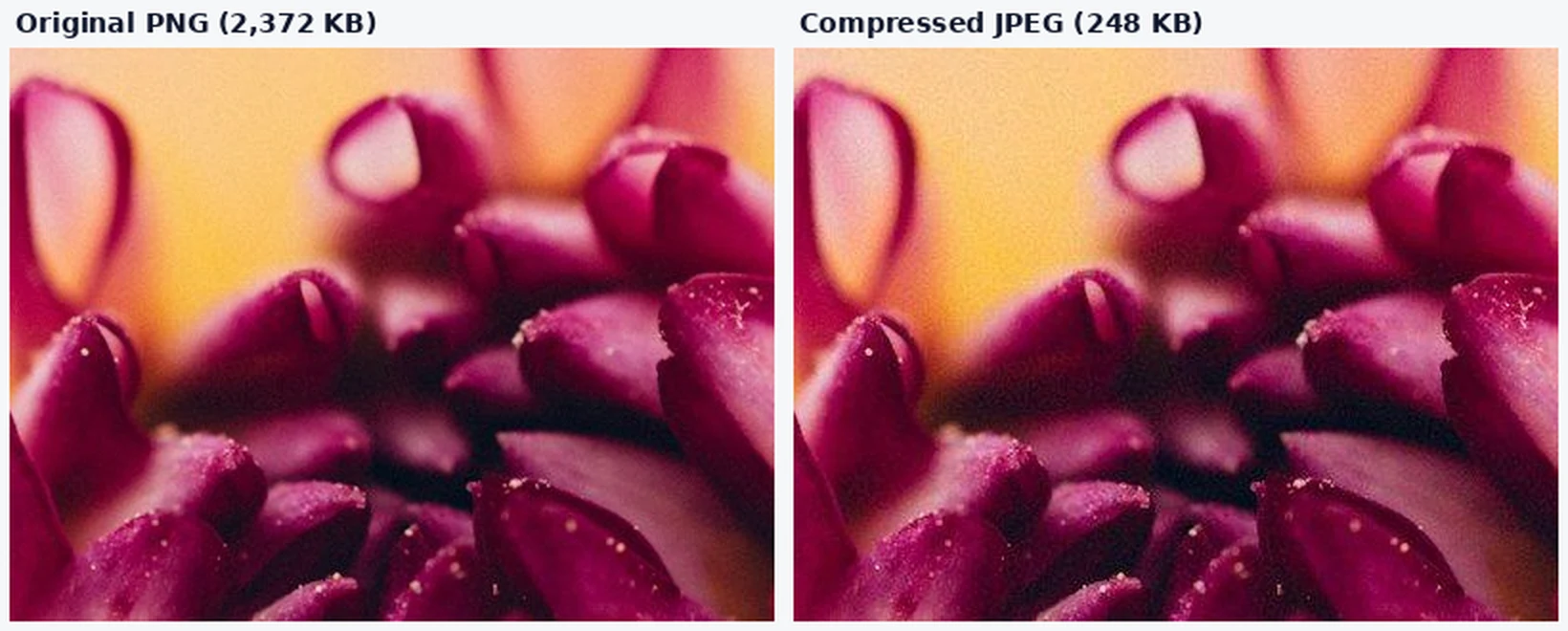
This works for photos. For pages with sharp text, such as a scanned form or a screenshot of a document, JPEG compression can leave faint marks around the letters, so check the result at full size before sending it.
How many pages fit in an email?
For personal accounts, Google's Gmail Help page gives the attachment limit as 25 MB. If you go over, Gmail removes the attachment and adds it as a Google Drive link instead. Work and school accounts use a limit set by their administrator, and other mail providers have their own limits, so check your own before relying on the number. We read the Gmail page on October 30, 2026.
Using the average page from our test, a rough count of pages before you hit 25 MB looks like this.
| How the PDF was built | Average per page | Pages before 25 MB |
|---|---|---|
| WebP photos merged directly | about 2.5 MB | about 10 |
| PNG photos merged directly | about 3.2 MB | about 7 |
| JPEG photos merged directly | about 0.25 MB | about 100 |
| PNG photos compressed to JPEG first | about 0.2 MB | about 120 |
These are estimates from three sample photos, and your own photos will compress differently. A busy photo takes more bytes than a plain one, so treat the page counts as a rough guide, not a promise.
Step by step
- Check your file types. If your photos are PNG or WebP, compress them first. If they are JPEG straight from a camera or phone, you may only need to compress them when they are very large.
- Compress to JPEG. Open Magic Image Compressor, choose JPEG as the output format, and download the result. Several photos come back as one ZIP file, so unzip it before the next step.
- Name the files in order. A prefix such as 01, 02, 03 keeps the pages in the order you want.
- Merge into one PDF. Open Magic File Converter, add the compressed photos, choose "to PDF" and download. Our guide on combining photos into one PDF covers this step in more detail.
- Check the size before you attach it. If the file is still too large, compress again with a smaller image size, or split the set into two PDFs.
Frequently asked questions
Why is my PDF bigger than the photos I put in?
PNG and WebP photos are stored in the PDF without lossy compression. In our test, three PNG photos of 5.7 MB became a 9.7 MB PDF, and three WebP photos of 340 KB became a 7.4 MB PDF. JPEG photos stay about the same size.
Does merging photos into a PDF lower their quality?
Not with Magic File Converter. Each image becomes one page at its original pixel size, and JPEG files are placed as they are, without being re-encoded.
Should I convert WebP photos to JPEG before making a PDF?
Yes, if the PDF has to be small. In our test, converting three WebP photos to JPEG first took the PDF from 7,376,892 bytes to 439,189 bytes.
What is the Gmail attachment limit?
Google's Gmail Help page gives 25 MB for personal accounts, and Gmail adds larger attachments as a Google Drive link instead. Work and school accounts use the limit their administrator sets. We read the page on October 30, 2026.
Will compressing to JPEG make my text pages blurry?
For photos we could not see a difference at a close crop. Pages with small text can show faint marks around the letters after JPEG compression, so check the result at full size before sending.
Is anything uploaded?
No. Both tools run in your browser tab and your files are not sent to a server.
Is it free?
Yes. No account and no watermark.
Ready to try it? Compress your photos first, then merge them into one PDF. For more on why file types behave so differently, see our guide to compression versus conversion.