"How do I make this file smaller" usually leads people to one of two different tools — a "compressor" or a "converter" — and the two terms get used almost interchangeably even though they do different things. Picking the wrong one means running your file through a tool that doesn't actually solve your problem.
What compression actually does
Compression shrinks a file's size without changing its format. A compressed JPEG is still a JPEG; a compressed PDF is still a PDF. It works by either discarding some data that's hard to notice is missing (lossy compression — used for photos, where a slightly less sharp image is an acceptable tradeoff) or by encoding the existing data more efficiently with no loss at all (lossless compression — used for things like ZIP files, where every byte needs to come back exactly as it was).
What conversion actually does
Conversion changes a file's format — from PNG to JPEG, from MOV to MP4, from DOCX to PDF. The size doesn't have to change at all conceptually; it changes as a side effect of the new format's own storage rules. Some formats are inherently more space-efficient than others for the same content, so converting can shrink a file dramatically, but that's a consequence of the format swap, not the point of it.
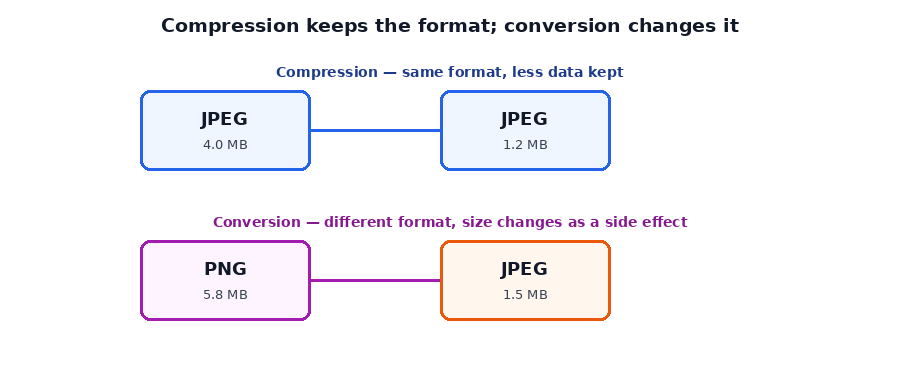
| Goal | What actually happens | Format after |
|---|---|---|
| Compress a JPEG | Same format, less data kept | Still JPEG |
| Convert PNG → JPEG | Format changes to one with lossy encoding built in | JPEG (usually much smaller) |
| Convert JPEG → PNG | Format changes to one with lossless encoding | PNG (usually larger) |
| Convert MOV → MP4 | Format/container changes, size depends on codec settings | MP4 (often smaller, not guaranteed) |
How to pick the right one
If you need the file to stay in its current format — say, your workflow specifically requires a PNG — compress it and keep the format. If you're flexible on format and just want the smallest reasonable file, converting to a more space-efficient format (like WebP for photos) often gets you further than compression alone, and the two can be combined for the smallest possible result.
Magic Image Compressor handles the compression side — shrinking a file while keeping its format, with a quality slider so you control the tradeoff. Magic File Converter handles the format-swap side, including into more space-efficient formats. Both run locally in your browser.
→ Compress a file with the free Magic Image Compressor — runs in your browser, nothing is uploaded.Frequently asked questions
Does converting a file always make it smaller?
No. Converting changes the format, and the new format may or may not compress the data more efficiently than the original. Converting a PNG to JPEG typically shrinks it a lot; converting a JPEG to PNG typically makes it bigger.
If I just want a smaller file, should I compress or convert?
Start with compression if you want to keep the same format (a smaller JPEG that's still a JPEG). Convert if you're open to changing format and the new one is inherently more efficient for your content, like PNG to WebP for photos.
Can I do both — convert and compress?
Yes, and it's common to do both when the goal is the smallest possible file — convert to a more efficient format, then apply compression on top of that.
Does compression always lose quality?
Only lossy compression does. Lossless compression (used by formats like PNG or ZIP) shrinks the file without discarding any data, though it typically achieves smaller reductions than lossy methods.
Trying to shrink an image specifically for email or social media? Our guide to compressing images for email and social covers the practical settings to use.
Not sure which format to convert to? Try Magic File Converter and compare the output sizes yourself.