You've got a stack of separate images — photos of receipts for an expense report, snapshots of a signed form, pages of an assignment shot on your phone — and whoever's asking for them wants "one PDF," not ten separate JPGs in an email. Turning a batch of photos into a single, properly ordered PDF takes one pass, no app install required.
Why one PDF beats a folder of photos
A single PDF is easier for the recipient to open, print, or file than a dozen loose images — no need to click through each one in order, no risk of a file going missing from the batch, and no ambiguity about what order they belong in. For anything official — receipts, forms, applications — a single document also just looks more put-together.
How the merge works
Turning images into a PDF is straightforward: each photo becomes one page, sized to match its original dimensions so nothing gets cropped or stretched to fit a standard page size. The pages appear in whatever order the files were selected in.
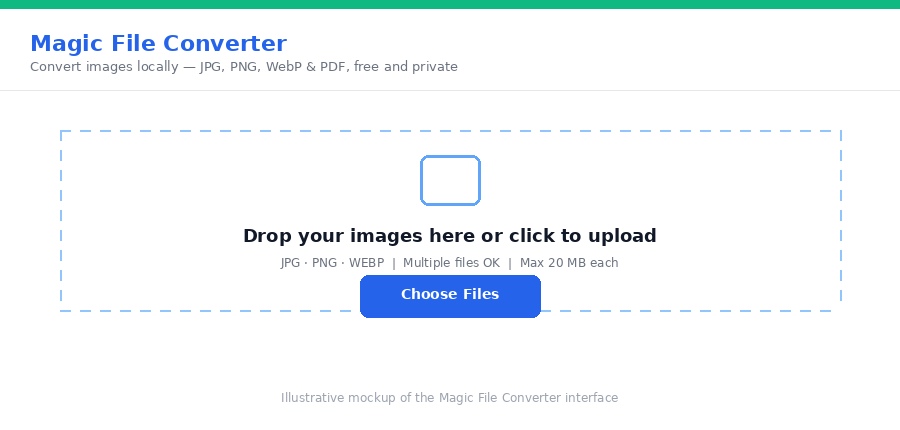
Magic File Converter does this locally in your browser — drop in your images, choose "to PDF," and get back a single document with each photo as its own page. Nothing is uploaded to a server in the process.
Step-by-step
- Name your files in order first if page order matters — a prefix like
01-receipt.jpg,02-receipt.jpgkeeps them sorted correctly when you select them. - Open the tool. Go to Magic File Converter and select all your photos at once.
- Choose "to PDF." This merges every selected image into one document instead of converting them individually.
- Download. You get a single PDF with each photo as its own page, ready to send or print.
Mixing formats is fine
You don't need every photo to be the same file type first — JPG, PNG, and WebP images can all be selected together and merged into one PDF in a single pass, so there's no need to convert everything to match before you start.
Frequently asked questions
What order do the photos appear in the PDF?
The order you select or drop the files in. Rename your files with a number prefix (01, 02, 03...) beforehand if you need a specific page order, or reorder them in your file picker before uploading.
Does each photo become its own page?
Yes. Each image becomes one page in the output PDF, sized to match the original image's dimensions, so nothing is cropped or stretched.
Can I mix JPG, PNG, and WebP photos in the same PDF?
Yes. You can select a mix of JPG, PNG, and WebP files and merge them all into a single PDF in one pass.
Is it free?
Yes — no account, no upload, no watermark.
Need to pull a few pages back out of a PDF later, or reorder an existing document? Our guide to extracting pages from a PDF covers the reverse direction.
Got a stack of photos that need to be one document? Merge them into a PDF with Magic File Converter in one pass.