You turn a clip into a GIF, try to share it, and one of two annoying things happens. Either the upload just fails with a file-too-large error, or it uploads fine but sits in the chat as a flat, static thumbnail until someone actually clicks it. Both are the same root problem: your GIF is bigger than the platform is happy with, and the limits are stricter than most people expect.
How big can a GIF actually be?
The rules differ by platform, and there's a distinction worth knowing between "will it upload" and "will it auto-play":
| Platform | Auto-play threshold | Upload limit (free tier) |
|---|---|---|
| Discord | ~256 KB | ~8–10 MB (higher with Nitro) |
| Slack | No hard limit | No GIF-specific cap; large files just load slowly |
On Discord specifically, a GIF under roughly 256 KB will animate immediately in the chat feed. Go over that, and it still uploads and works — but Discord shows a static frame until someone taps it, which defeats the point of posting a GIF in the first place. Slack doesn't enforce a GIF-specific ceiling, but a bulky multi-megabyte file can be noticeably slow to load for teammates on a weaker connection, which has the same practical effect.
Why GIFs get so big in the first place
Three things drive a GIF's file size: its resolution (pixel width and height), its frame rate (frames per second), and its duration. Double any one of these and the file size roughly doubles too — and because the GIF format has no modern video compression behind it, even a short clip can balloon into several megabytes if you export it at full resolution and a high frame rate.
The three levers that actually shrink a GIF
- Lower the frame rate. Dropping from 15fps to 10fps cuts a third of the frames — and for typical reaction clips, memes, or UI demos, the motion still reads fine at 10fps.
- Shrink the resolution. Most chat apps display GIFs fairly small anyway, so capping the width at 480px — or 320px for a really tight budget — removes a large chunk of size with no visible loss in context.
- Trim tighter. Cut the clip down to just the moment that matters. Every extra second of encoded frames adds directly to the file size.
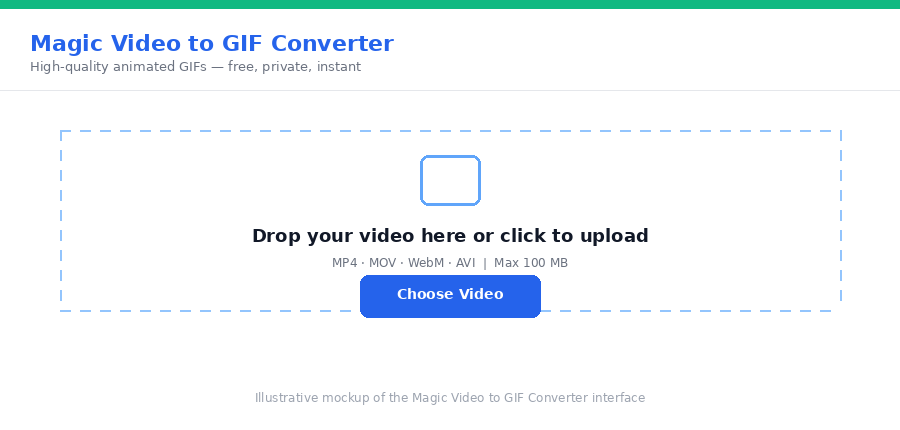
Magic Video to GIF gives you direct control over all three — frame rate, output width, and trim range — so you can dial in a GIF that's small enough to post before you even export it, instead of fighting with a separate compressor afterward. It runs on FFmpeg compiled to WebAssembly, entirely in your browser, so your clip is never uploaded to a server.
Step-by-step
- Upload your clip. Open Magic Video to GIF and drop in your video (up to 100 MB).
- Trim tightly. Set the start and end times to just the moment you want — no extra seconds.
- Set the frame rate to 10fps. This alone cuts a meaningful chunk of size with minimal visible change.
- Cap the width at 480px, or 320px for chat use. This is where most of the savings come from.
- Convert and download. Check the resulting file size — for a chat-ready GIF, aim under 256 KB if Discord auto-play matters to you.
Still too big? Drop one more lever
If the GIF still isn't small enough, go back and pull one more lever rather than all three at once — drop the width to 320px, or trim another second or two off the clip. That way you can watch how each change affects both the size and the look before committing. If you land just above the auto-play threshold, it's still a perfectly usable GIF — it just needs a click instead of playing instantly.
Frequently asked questions
Why doesn't my GIF auto-play in Discord?
Discord only auto-plays GIFs in the chat feed when they're under roughly 256 KB. Larger GIFs still upload and work, but show as a static thumbnail until someone clicks them.
What's the real upload limit for free Discord accounts?
Free accounts can generally upload files up to around 8–10 MB, with Nitro subscriptions raising that considerably. Platform limits do change over time, so treat this as a general guide rather than an exact number.
Does Slack have a GIF size limit?
Slack doesn't set a hard GIF-specific size cap the way Discord does. The practical constraint is your workspace's overall storage quota, and very large files can simply be slow to load for teammates on a weaker connection.
Will shrinking a GIF ruin the quality?
Not if you shrink it the right way. Lowering the frame rate and capping the pixel width first — rather than degrading color quality — keeps a GIF looking clean, since most chat apps display GIFs fairly small anyway.
Starting from a longer recording rather than an existing clip? Our Magic Video Cutter trims the raw footage and cuts silent gaps locally too, so you export a GIF from just the good part.
Got a GIF that won't post? Shrink it with Magic Video to GIF and get it under the limit in one pass.