You need to record something quickly — a bug to attach to a support ticket, a two-minute walkthrough for a coworker, a quick demo for a client — and installing a whole screen-recording app feels like overkill for one clip. It also usually isn't necessary. Your browser can already do this, no install required.
How your browser records your screen
Modern browsers expose a Screen Capture API that lets a web page ask your permission to capture a screen, a specific window, or a single browser tab as a live video stream. Pair that with the MediaRecorder API, which encodes that stream into a downloadable video file, and you get full screen recording with zero installation — this combination has been standard in Chrome, Firefox, and Edge for years.
Is the quality actually good enough?
It used to be a fair concern — early browser-based recording looked noticeably softer than dedicated desktop software. That gap has mostly closed. Modern browsers now use hardware-accelerated video encoding, and for typical screen content — documents, browsing, app walkthroughs, presentations — a browser recording at 1080p is effectively indistinguishable from a desktop recording app's output. Fast-motion content like gameplay footage still benefits from dedicated software with more aggressive encoding options, but for tutorials, bug reports, and walkthroughs, the difference is no longer meaningful.
The privacy angle worth knowing about
Plenty of "free online screen recorder" tools quietly upload your recording to their own servers — that's how they're able to offer shareable links, cloud storage, or built-in editing. If what you're recording includes internal tools, account details, client data, or anything else you wouldn't want leaving your device, that's worth pausing on. A fully browser-based recorder like Magic Screen Recorder processes everything locally: the video is captured, encoded, and downloaded straight to your device, and it's never sent anywhere unless you choose to share the file yourself afterward.
Step-by-step
- Open the recorder. Go to Magic Screen Recorder — no sign-up screen, no install prompt.
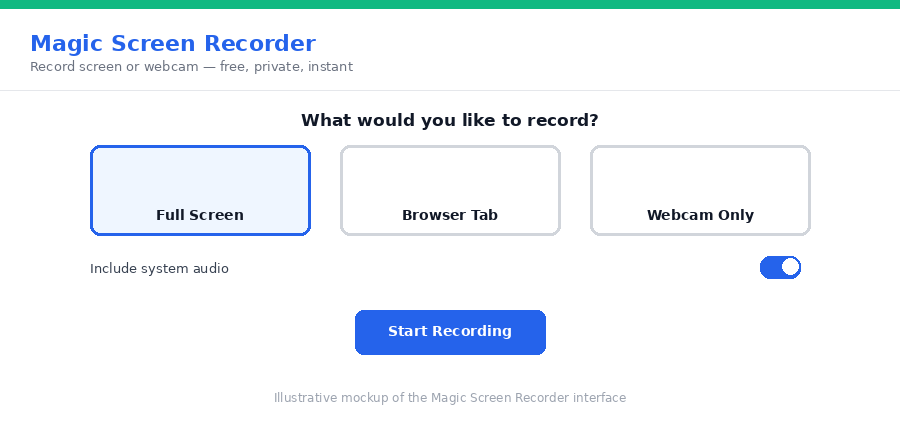
- Choose your source. Pick full screen, a specific browser tab, or webcam-only, depending on what you need to show.
- Set your audio. Toggle microphone narration on or off, and enable system audio if you need to capture sound playing on your screen (supported in Chrome and Edge).
- Record. Hit start, do what you need to show, then stop whenever you're done — there's no time limit.
- Download. Save the file as WebM or MP4 immediately — no processing wait, no upload step.
A couple of practical notes
Browser screen recording needs a reasonably current browser — Chrome 74+, Firefox 71+, or Edge 79+ all support it. System audio capture (the sound playing on your screen, not just your microphone) currently only works in Chromium-based browsers like Chrome and Edge; Firefox and Safari can capture your microphone but not system audio directly. And because there's no arbitrary time limit, a long recording is fine as long as your device has enough memory and storage to hold it.
Frequently asked questions
Do I need to install a plugin or extension to record my screen?
No. Modern browsers support screen and audio capture natively through the Screen Capture and MediaRecorder APIs — no plugin, extension, or download required.
Is my recording uploaded anywhere?
With Magic Screen Recorder, no. The recording is captured and encoded locally in your browser, and the file downloads directly to your device — nothing is sent to a server.
Can I record just a browser tab instead of my whole screen?
Yes. When you start a recording, your browser presents a picker letting you choose Entire Screen, a specific Window, or a specific Tab.
Is it free?
Yes — no account, no time limit, no watermark.
Once you've got a recording, trimming it or turning a highlight into a shareable clip is often the next step. Our Magic Video Cutter trims the raw footage locally, and Magic Video to GIF turns a short segment into a lightweight GIF for chat — both run entirely in your browser too.
Need to record something right now? Open Magic Screen Recorder and start capturing in seconds — no install, no account.