Every image on a website is a tradeoff between how it looks and how fast the page loads. Pick the wrong format and you either end up with a blurry logo or a page that takes an extra two seconds to load for no visible benefit. The good news is the decision isn't complicated once you know what each format is actually good at.
The one-question rule
Ask: does this image have sharp edges, flat colors, or transparency (a logo, icon, text graphic, or screenshot)? Or is it a photo with smooth gradients and lots of natural detail?
| Image type | Best format | Why |
|---|---|---|
| Photos | JPG or WebP | Lossy compression handles smooth gradients efficiently — small file, minimal visible loss. |
| Logos, icons, text graphics | PNG or WebP | Lossless and supports transparency — sharp edges stay crisp, no blurring. |
| Any web image, when size matters most | WebP | 25–35% smaller than JPEG at equal quality, and supports transparency like PNG. |
Why this actually matters for a website
Images are typically the heaviest assets on any web page. Serving a large photo as an uncompressed PNG instead of a properly compressed JPG or WebP can easily triple or quadruple that image's file size — and multiplied across every photo on a page, that adds up to real, measurable load time. Slower pages mean more visitors bouncing before the page even finishes loading, which is a bigger cost than most people realize when they're just dragging an image into a CMS without a second thought.
Where PNG still wins
PNG isn't obsolete — it's simply the wrong tool for photographic content. For a logo, icon, or a screenshot with text that needs to stay perfectly sharp, PNG's lossless compression and transparency support are exactly what you want. The mistake is using PNG for photos, where its lossless nature works against you: PNG can't shrink a photo down without dropping resolution, because there's no quality slider to make PNG smaller — only WebP or JPG can trade a little detail for a lot of file size.
The fastest way to get it right
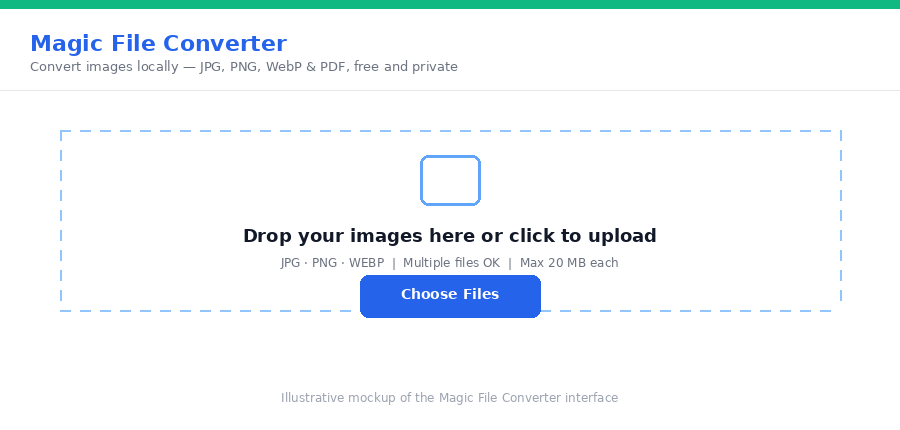
If you're not sure what format your images are currently in, or you know you need to switch a batch of them, Magic File Converter converts between JPG, PNG, and WebP freely, and Magic Image Compressor adds quality control and format-forcing (Force JPEG / Force WebP) on top for photos that need to shrink further. Both run entirely in your browser.
Step-by-step
- Sort your images into "photos" and "graphics/logos/screenshots."
- Convert photos to WebP (or JPG for maximum compatibility) using Magic File Converter.
- Keep graphics as PNG or WebP — don't convert logos or icons to JPG, since you'll lose transparency and see edge blurring.
- Compress the photos further with Magic Image Compressor if file size still matters after the format switch.
Frequently asked questions
Is WebP always better than JPG for a website?
For file size, usually yes — WebP is typically 25-35% smaller than JPEG at equivalent quality. The only reason to stick with JPG is compatibility with very old software that doesn't render WebP, which is rare for website visitors using modern browsers.
Why does my logo look bad as a JPG?
JPG doesn't support transparency and uses lossy compression that blurs sharp edges — bad for logos, icons, and text-heavy graphics. Keep those as PNG or WebP with transparency instead.
Does image format actually affect my website's speed?
Yes, meaningfully. Images are usually the heaviest assets on a page, so serving a photo as an unnecessarily large PNG instead of a compressed JPG or WebP can add real, measurable load time.
Is converting images to the right format free?
Yes — no account, no upload, no watermark.
Got a WebP file a program on your computer refuses to open? Our guide to fixing WebP compatibility issues covers converting it back to something more universal.
Not sure your website images are in the right format? Convert them with Magic File Converter and speed up your page.