You save an image from a website — right-click, "Save image as" — or someone sends you a photo, and it turns out to be a .webp file. You try to open it and something doesn't work: an email attachment preview stays blank, Word won't insert it, or an older photo viewer just shows a broken-image icon. Nothing is wrong with the picture. It's a format problem, and it's becoming more common every year.
What is a WebP file, and why is it suddenly everywhere?
WebP is an image format Google introduced specifically to make web pages load faster — at the same visual quality, a WebP file is typically 25–35% smaller than the equivalent JPEG. Because of that saving, huge numbers of websites now serve their images as WebP automatically. When you save or download a picture from one of those sites, you're not getting a JPG — you're getting the actual WebP file the site sent you.
That's why WebP files keep turning up in downloads folders even for people who've never deliberately chosen the format. The file itself is fine; the problem is that not every app your Downloads folder connects to can read it.
Which apps still can't open WebP
Support has improved a lot, but a few common gaps remain:
- Older Windows Photo Viewer (the classic viewer from Windows 7/8) doesn't support WebP at all, and it isn't included in clean installs of modern Windows.
- macOS Preview dropped native WebP support starting with macOS Monterey, so double-clicking a WebP file may fail to open where it used to work fine on older macOS versions.
- Email clients like Outlook and some versions of Apple Mail can show an inconsistent result — sometimes a blank box instead of the image.
- Older image editors, including Photoshop versions before 2022, need a separate plugin to open WebP files at all.
None of this means your file is corrupted — it just means the app you're using doesn't speak WebP.
The quick fix that doesn't need converting anything
Every modern browser — Chrome, Firefox, Edge, Safari — displays WebP natively. If you just need to look at the image, drag the file into a browser tab and it'll open instantly, no software required. That's fine for a one-off look, but it doesn't help if you need to attach the image to an email, paste it into a document, or upload it to a form that filters by file extension.
Convert it once so it works everywhere
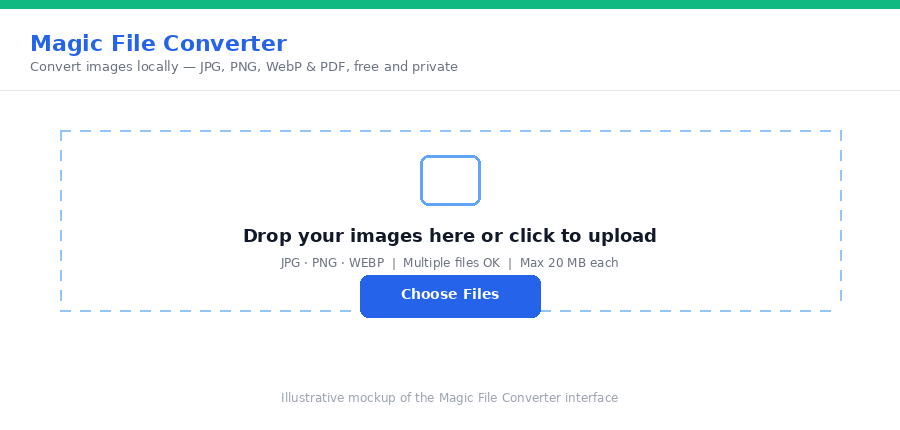
For anything beyond viewing, converting the file to JPG or PNG solves the problem permanently. Magic File Converter does this entirely in your browser — drop in the WebP file, pick a target format, and download the converted image. It runs locally using the browser's Canvas API, so the file is never uploaded anywhere.
Step-by-step
- Open the converter. Go to Magic File Converter and drop in your .webp file (or a whole batch).
- Pick a format. Choose "to JPG" for photos, or "to PNG" if the image needs to keep a transparent background.
- Convert. The conversion happens instantly in your browser — no waiting on a server.
- Download. Save the new file, which will now open in any app, email client, or upload form.
JPG or PNG — which should you pick?
If the WebP image is a regular photo, convert to JPG — it gives the smallest file for photographic content. If the WebP has a transparent background (WebP supports alpha transparency just like PNG), convert to PNG instead; converting a transparent WebP to JPG will flatten the transparency to a solid color, usually white.
Frequently asked questions
Why do downloaded images turn into WebP files?
Many websites serve images in WebP by default because it's smaller than JPEG or PNG at the same quality. When you save or download an image from a page like that, you get the WebP version the site actually sent, not a JPG.
Will converting WebP to JPG make it look worse?
Usually the difference is negligible. The WebP version was likely already lightly compressed by the website, so converting it to a high-quality JPG rarely introduces a visible loss.
Can I just rename the file from .webp to .jpg?
No. Renaming the file extension doesn't change how the image data is encoded inside the file — the app still can't decode WebP data, it'll just show an error with a different file name. A real conversion is required.
Is converting WebP files free?
Yes — no account, no upload, no watermark.
If the converted JPG or PNG still won't attach to an email because it's too large, our Magic Image Compressor shrinks it further, also fully local with no upload.
Got a WebP file that won't open? Convert it with Magic File Converter and it'll work everywhere in seconds.