The four-frame photo strip has outlived the photo booth itself. People still queue for the booth at a wedding, a mall, or a night out, and the result is the same small, slightly silly keepsake: four poses, one frame, a date at the bottom. The good news is that you do not need the booth, or an app, to get that look at home. A laptop webcam and a free browser tool are enough.
This guide covers what actually makes a strip look good (it is mostly light and planning, not equipment), how to build one step by step, how big the files are, and what to do before you print or send it.
Set up the shot before you open anything
Four small frames forgive a lot, but a few habits make the difference between a strip you keep and one you delete.
- Face the light, never the window behind you. A window or lamp behind you turns faces into silhouettes. Turn your chair around so the light falls on your face, or sit facing a window in daytime.
- Raise the camera to eye level. A laptop on a desk looks up your nose. Stack it on a few books so the lens is level with your eyes.
- Keep faces near the middle. Every frame in the strip is 4:3, so anything near the edges can be cut off. Sit or stand centered and leave a little room above your head.
- Pick a plain background. A blank wall or door beats a messy room, and it keeps attention on faces.
- Plan four poses. The countdown only gives you three seconds between shots, so decide in advance: for example neutral, laughing, a close-up, and something silly.
Step by step with Magic Photo Booth
- Open Magic Photo Booth and choose how to start. "Use Camera" takes four shots with your webcam. "Use My Photos" lets you pick up to four photos you already have.
- Allow the camera (webcam mode only). Your browser asks for permission the first time. The picture stays inside the browser tab.
- Press the shoot button. A 3-second countdown runs before each of the four shots, and it restarts after every shot, so you have three seconds to change pose.
- Retake anything you dislike. Click a slot to retake only that shot. In photo mode, clicking a slot swaps that photo.
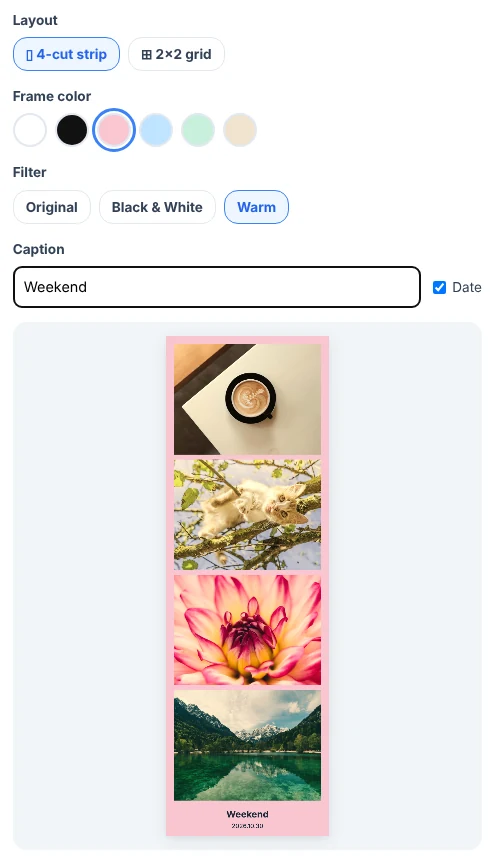
- Pick the look. Choose a layout (4-cut strip or 2×2 grid), a frame color (white, black, pink, sky blue, mint or beige), a filter (Original, Black & White or Warm), and an optional caption of up to 30 characters. The date is on by default and can be switched off.
- Download. Click the download button to save a PNG.
Strip or 2×2 grid?
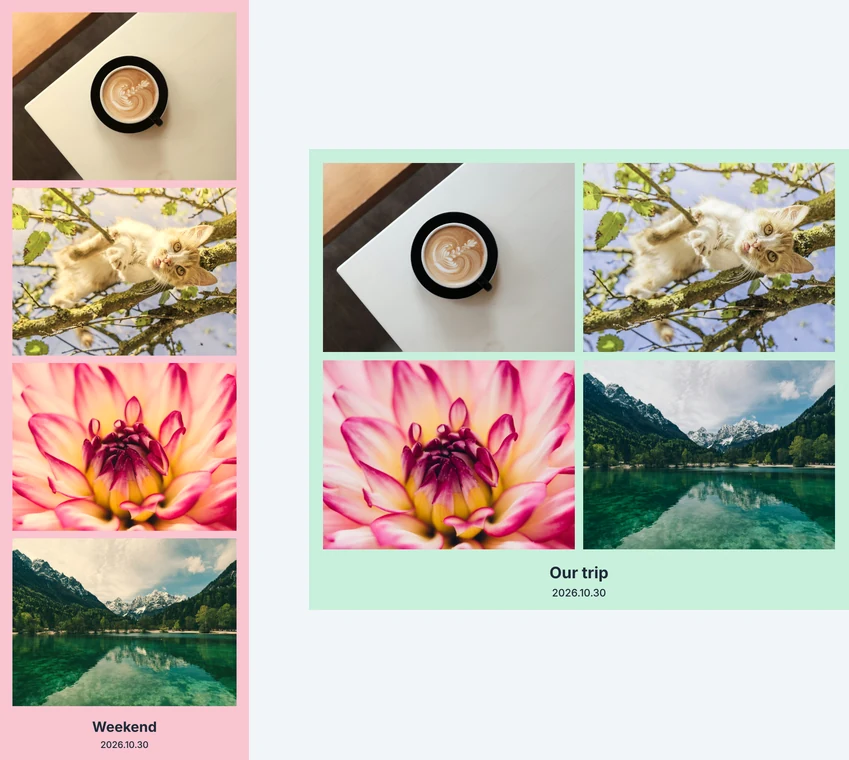
Both come from the same four shots, so you can try each before you save.
| Layout | Size (pixels) | At 300 dpi | Good for |
|---|---|---|---|
| 4-cut strip | 600 × 1834 | about 2.0 × 6.1 in | Printing and gifts, the classic booth look |
| 2×2 grid | 1158 × 988 | about 3.9 × 3.3 in | Screens and chat, where a squarer shape fits better |
The print sizes are simple arithmetic (pixels divided by 300). If a print shop offers a standard 4 × 6 inch size, ask for the "fit" option rather than "crop" so the edges of the frame are not trimmed.
Making a strip from photos you already have
You do not have to be in front of a camera. The photo mode is a quick way to turn four related pictures into one shareable image: four angles of something you are selling, a pet over a week, four stops on a trip, or the steps of a recipe. Pick four photos with a similar brightness and the strip will look much more consistent. Photos that are very different in color look patchy side by side, and the Black & White filter is a quick way to even them out.
Before you print or send it
Each download is a PNG of about 1.7 to 1.8 MB in our test. That is ideal for printing because nothing is compressed away, but heavy for messaging. We ran the same strip through Magic Image Compressor with default settings: forcing JPEG took it from 1.7 MB to 131.6 KB, and forcing WebP to 80.7 KB. Use the original PNG for prints and a compressed copy for chats and email.
One more habit: look at the preview before saving, because the date is added automatically. If you are posting publicly and prefer not to show the day you took it, untick the date box.
Frequently asked questions
Do I need to install anything?
No. Magic Photo Booth runs in your browser. For webcam mode your browser will ask permission to use the camera; if you would rather not allow it, choose "Use My Photos" and pick four pictures you already have.
Why is my webcam photo flipped like a mirror?
The live preview and the saved shots are mirrored, the way a classic photo booth screen works. Text on a sign or T-shirt will therefore read backwards in the result, so avoid including any.
Can I retake just one of the four shots?
Yes. Click that slot and only that shot is retaken. The other three stay as they are.
How big is the downloaded file?
The 4-cut strip is a PNG of 600 × 1834 pixels and the 2×2 grid is 1158 × 988 pixels. In our test both were about 1.7 to 1.8 MB.
Is anything uploaded?
No. The camera feed and your photos stay in your browser tab and are discarded when you close it. Nothing is sent to a server.
Is it free?
Yes. No account, no watermark.
Want a strip you can print on a wall or give as a gift? Try Magic Photo Booth, then use Magic Photo Cropper first if one of your photos needs a different framing.