Someone asks for "just your ID page," and what you have is a 12-page scanned booklet. Or a form wants page 3 of a 40-page contract, not the whole thing. Or you scanned a stack of documents into one long PDF and now need to email just one chapter out of it. In every case, the file you have is bigger than the file you need to send.
You don't have to screenshot the page off your screen or re-scan it. A PDF is just a container for pages — you can pull specific ones out and save them as their own file, in seconds.
Why "just send the whole PDF" is often the wrong move
Sending the entire document when only one page is needed has real downsides: it exposes information the recipient didn't ask for (other pages of a contract, other people's records in a shared scan), it's a bigger download for no reason, and it looks less professional than handing over exactly what was requested. Extracting the relevant pages first is quick and avoids all of that.
How page extraction actually works
Splitting a PDF by page range does something simple under the hood: it copies the selected pages' original content directly into a new PDF, without re-rendering or re-compressing them. That means no quality loss — text stays selectable, images stay at full resolution, exactly as they were in the source file.
The useful part is that you're not limited to a single continuous block of pages. A good page-range tool lets you type something like 1-3, 5, 7-10 and get exactly those pages — skipping the ones you don't need — in one pass.
Do it locally, without uploading the document
Magic PDF Organizer splits PDFs entirely inside your browser using a local engine (pdf-lib running in a Web Worker) — no server, no upload, no account. That matters more than it might seem: if the document contains an ID, a contract, or medical paperwork, keeping the whole file off a third-party server in the first place avoids the privacy tradeoff altogether.
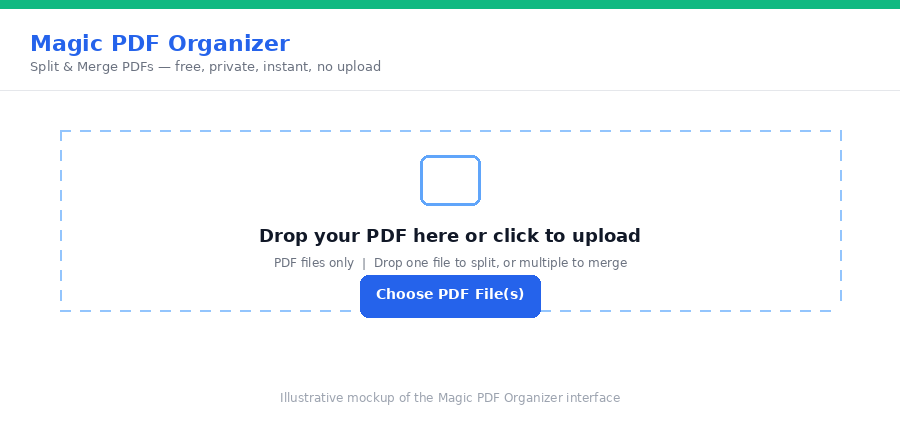
Step-by-step
- Open the tool. Go to Magic PDF Organizer and switch to the "Split" tab.
- Upload your PDF. Drop in the file you want to pull pages from.
- Type the page range. Enter the pages you need, e.g.
1-3, 5, 7-10for a mix of consecutive and single pages. - Extract and download. You get a new PDF containing only the pages you selected, in the order you specified.
Common situations this solves
- Sharing an ID or certificate that's buried inside a longer scanned document.
- Sending a single invoice or receipt out of a multi-page statement.
- Pulling one chapter or section out of a long report to share separately.
- Removing pages you don't want to send — extract everything except the ones you're leaving out.
Frequently asked questions
Can I extract pages that aren't next to each other?
Yes. You can enter a range like "1-3, 5, 7-10" and get exactly those pages pulled out — you're not limited to one continuous block.
Will the extracted pages lose any quality?
No. Extracting pages copies the original page content directly rather than re-rendering it, so text stays selectable and images stay at full resolution.
Does this upload my document anywhere?
With Magic PDF Organizer, no. The PDF is opened and split entirely inside your browser using a local engine, so the file never leaves your device.
Is it free?
Yes — no account, no upload, no watermark.
Need to go the other way and combine files instead? Our guide to merging PDFs privately covers combining multiple documents into one, using the same no-upload approach.
Only need a few pages from a long PDF? Pull them out with Magic PDF Organizer and send exactly what's needed.