You try to attach a few photos to an email and get the dreaded "file too large." Or you upload a picture to a form and it stalls, or a website rejects it for being over some size limit. Modern phone cameras produce enormous files — a single photo can easily be 5 to 12 MB — and most places you want to send them weren't built for that.
The good news: you can usually cut a photo's file size by 70% or more with no visible difference in quality. This guide explains why image files get so big, how much you can safely shrink them, and the fastest way to do it without uploading your photos anywhere.
Why are photo files so big?
Two things drive a photo's file size: its dimensions (how many pixels wide and tall) and its compression (how efficiently those pixels are stored).
A modern phone shoots photos at something like 4000 × 3000 pixels — that's 12 million pixels per shot. That resolution is great for printing a poster, but wildly more than you need to email a photo or post it online, where it'll be displayed at maybe 1000–2000 pixels wide. You're sending ten times the data the viewer will ever see.
On top of that, phones often save photos at very high quality settings that barely compress the image at all, to preserve every last detail. For everyday sharing, that detail is invisible — but you're still paying for it in megabytes.
How much can you safely shrink a photo?
More than most people expect. There are two levers, and using both together is the trick:
- Cap the dimensions. For email, social media, or web use, a photo rarely needs to be wider than about 1920 pixels (Full HD). Dropping a 4000px photo to 1920px alone can cut the file size by 60–75%, and on any normal screen it looks identical.
- Compress the quality. JPEG and WebP let you trade a tiny, usually invisible amount of detail for a big size reduction. Around 75% quality is the sweet spot — the image looks the same to the eye, but the file shrinks dramatically.
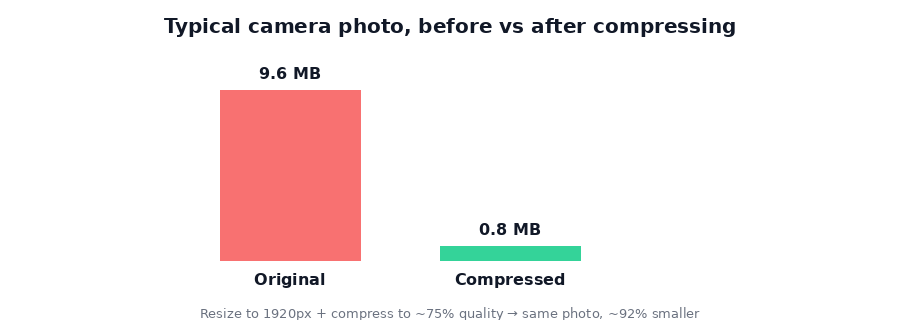
Do both — cap the width and compress — and a 10 MB photo often lands under 1 MB while still looking crisp. That's the difference between "won't attach" and "sends instantly."
JPEG vs PNG vs WebP: which should you use?
The format matters more than people realize:
| Format | Best for | Notes |
|---|---|---|
| JPEG | Photos | Great compression for photographs; the default choice for email and social. |
| PNG | Graphics, screenshots, logos | Lossless, so files stay large for photos. The quality slider has no effect on PNG — to shrink a PNG photo, convert it to JPEG or WebP. |
| WebP | Web use, smallest files | Typically 25–35% smaller than JPEG at the same quality, and supported by all modern browsers. |
Quick rule: if it's a photo, JPEG or WebP. If it's a screenshot or logo with sharp edges and text, keep it PNG. And if you're compressing a PNG photo and nothing seems to shrink, that's expected — switch the output to JPEG or WebP and it'll drop sharply.
The fastest way: compress in your browser
You don't need to install anything or upload your photos to a random website. A browser-based compressor does the whole job on your own device. Magic Image Compressor lets you drop in a batch of photos, set a quality level and a maximum size, and download them all — compressed — in seconds. It runs entirely in your browser using the Canvas API, so your images are never uploaded to a server.
→ Shrink your photos with the free Magic Image Compressor — runs in your browser, nothing is uploaded.Step-by-step
- Add your photos. Open Magic Image Compressor and drop in one photo or a whole batch.
- Set the quality. Leave it around 0.75 for the best balance of size and looks. Lower it only if you need an extra-small file and don't mind a little softening.
- Cap the size. Choose a maximum width like FHD (1920px) or HD (1280px) for web and email use. This is where most of the savings come from.
- Pick a format. Keep the original, or force JPEG or WebP for the biggest reduction — especially useful for PNG photos.
- Compress and download. You get the smaller files back instantly, as a ZIP if you did a batch.
A quick note on when smaller isn't better
Compression is nearly free for sharing, but there are moments to keep the original. If you're going to print the photo large, or you'll be cropping in tightly later, keep a full-resolution copy — you can always compress a duplicate for sending. Think of it as: compress the copy you share, keep the original you archive.
Frequently asked questions
Will compressing a photo make it look blurry?
Not if you do it sensibly. At around 75% quality most photos are visually identical to the original but a fraction of the size. Blurriness only appears when you push quality very low or shrink the dimensions far below what you need.
What's the difference between resizing and compressing?
Resizing changes the pixel dimensions; compressing keeps the dimensions but stores the image more efficiently. For big camera photos, doing both gives the smallest file with no visible loss.
Is it safe to compress photos in the browser?
Yes. A browser-based compressor processes your photos locally using the Canvas API. Your images are never uploaded to a server, so nothing leaves your device.
Is it free?
Yes — no account, no upload, no watermark.
Converting between formats rather than just compressing? Our Magic File Converter turns JPG, PNG, and WebP into each other (or into PDF) locally too.
Got a photo that won't attach? Shrink it with Magic Image Compressor and send it in seconds.