You take a quick screenshot to attach to a bug report or a support ticket, and it's somehow 4 or 5 MB — bigger than a full photo from your camera. It feels backwards: a picture of a static screen full of flat colors "should" be smaller than a photo of a real scene. The reason it isn't comes down to the file format.
Why screenshots are bigger than they look
Screenshots are almost always saved as PNG, a lossless format that reproduces every pixel exactly. That's great for accuracy, but sharp, high-contrast edges — like the crisp border between black text and a white background, or the hard edge of a UI button — compress very poorly under PNG's lossless algorithm. Photos, by contrast, are full of smooth gradients and soft transitions that compress much more efficiently, even losslessly.
So a screenshot full of sharp text and interface lines can end up several times larger than a photo with the same pixel dimensions, purely because of what's actually in the image.
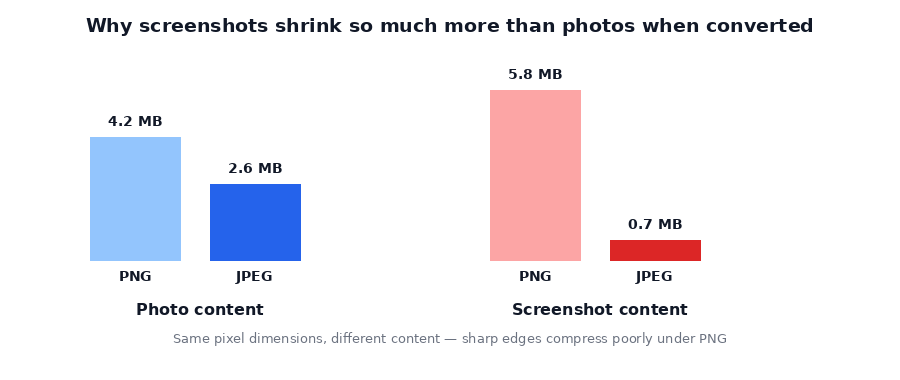
Two different problems, two different fixes
Before shrinking a screenshot, it helps to know which of two things you actually need:
- You need the smallest possible file (for an email attachment or upload limit) — convert to JPEG or WebP. Both handle sharp edges more efficiently than PNG, at the cost of a small amount of edge softening.
- You need the text to stay perfectly crisp (for documentation, a tutorial, or anything where readability matters most) — keep it PNG, but reduce the pixel dimensions instead of the format. A smaller screenshot at full PNG quality is often both sharper-looking and smaller than a full-size screenshot compressed to JPEG.
How to do both, in one tool
Magic Image Compressor handles either path: force the output to JPEG or WebP for the smallest file, or leave it as PNG and cap the maximum width to shrink the dimensions instead. Both run entirely in your browser, so nothing is uploaded — useful if the screenshot shows anything you'd rather not send to a random server, like account details or internal tools.
→ Shrink your screenshots with the free Magic Image Compressor — runs in your browser, nothing is uploaded.Step-by-step
- Add your screenshot(s). Open Magic Image Compressor and drop them in.
- Smallest file: set Output Format to "Force JPEG" or "Force WebP" and keep quality around 0.85 to protect text sharpness.
- Crispest text: leave the format as PNG and set a Max Size cap instead — 1280px is usually plenty for a bug report or ticket.
- Compress and download — you'll see the size drop, often by 60% or more, depending on which path you chose.
Frequently asked questions
Why is my screenshot so much bigger than a regular photo?
Screenshots are typically saved as PNG, a lossless format. Sharp edges around text and UI elements compress poorly under lossless PNG encoding, unlike smooth photographic gradients, so screenshots often end up larger than photos of the same pixel dimensions.
Will compressing my screenshot make the text blurry?
It can if you convert to JPEG at low quality, since JPEG compression softens sharp edges. Keep quality at 0.85 or above, or use WebP, which handles sharp UI edges better than JPEG at a comparable file size.
Should I convert my screenshot to JPEG or keep it PNG?
If file size matters more than pixel-perfect edges, convert to JPEG or WebP. If you need crisp, artifact-free text (for a tutorial or documentation), keep it PNG and instead reduce the pixel dimensions to shrink the file.
Is it free?
Yes — no account, no upload, no watermark.
Need to send several screenshots as one document instead of separate files? Our Magic File Converter merges multiple images into a single PDF locally too.
Screenshot too big to attach? Shrink it with Magic Image Compressor and send it in seconds.