A short webcam intro — for your profile, a job application, or a post introducing yourself — is one of those tasks that feels like it should be simple but somehow turns into installing an app and creating yet another account just to record 20 seconds of video. It doesn't have to. Your browser can record your webcam directly, and you can be done before an app would even finish installing.
What actually performs well on LinkedIn
Before hitting record, it's worth knowing what the platform actually rewards. For a personal or brand intro specifically, videos under 30 seconds tend to get the most engagement — long enough to say something, short enough that people don't scroll past. LinkedIn's technical limits are generous (MP4, under 5GB, up to 10 minutes), but that's a ceiling, not a target.
Aspect ratio matters more than people expect: a 1:1 square (1080×1080) is the safest bet across both desktop and mobile feeds, while a 4:5 vertical (1080×1350) fills more of the screen on mobile without triggering full-screen mode. Either works — just pick one and frame yourself accordingly before recording.
The detail most people miss: captions
Roughly 80% of video on LinkedIn is watched with the sound off, since videos autoplay muted by default as people scroll. If your intro relies entirely on what you're saying and has no captions, a large share of viewers will scroll past without absorbing your message at all. Planning to add captions after recording is worth building into your process from the start.
Recording your webcam without installing anything
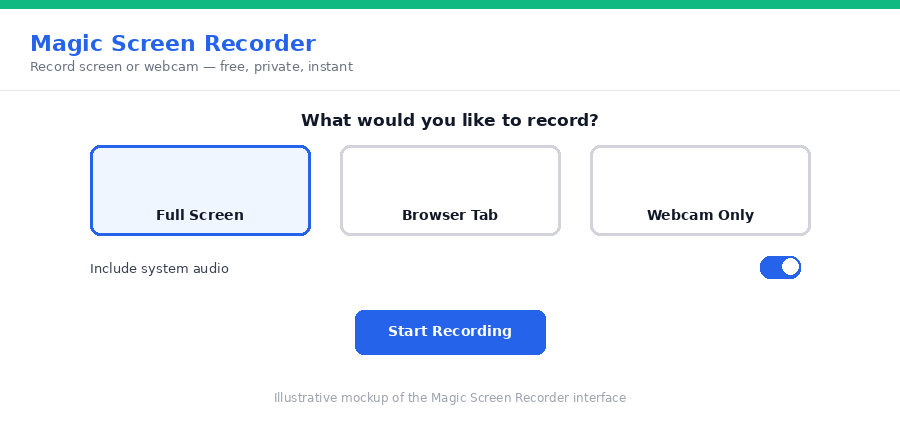
Magic Screen Recorder includes a webcam-only mode — no need to capture your whole screen if all you want is yourself on camera. It uses your browser's built-in MediaRecorder API, so there's no download, no plugin, and no account. The recording is processed and saved locally; it's never uploaded to a server in the process.
Step-by-step
- Open the recorder. Go to Magic Screen Recorder and select "Webcam" as the source.
- Turn on your microphone so your narration is captured alongside the video.
- Do a quick test take to check framing and lighting before your real take.
- Record your intro — aim for under 30 seconds for the best chance of holding attention.
- Download as WebM or MP4, ready to add captions and upload.
Add captions before you post
Since most viewers will watch muted, add captions before publishing — either through LinkedIn's own auto-caption feature after upload, or by exporting a caption overlay yourself if you want more control over the styling.
Frequently asked questions
How long should a LinkedIn intro video be?
Keep a personal intro or brand intro under 30 seconds for the best engagement. General native LinkedIn videos have a sweet spot of 30 to 90 seconds, but a quick intro clip performs best short.
Do I need captions on a LinkedIn video?
Yes, strongly recommended. About 80% of LinkedIn video is watched with the sound off, since muted autoplay is the default in the feed — without captions, your key message can be missed entirely.
What aspect ratio should I record in?
1:1 (square, 1080x1080) is the safest choice across desktop and mobile. 4:5 vertical (1080x1350) performs very well on mobile feeds specifically, if that's your primary audience.
Is recording this way free?
Yes — no account, no time limit, no watermark.
Want to add readable captions for the muted-autoplay crowd? Our Magic Subtitle Exporter exports styled caption overlays locally too.
Need a quick intro video today? Record your webcam with Magic Screen Recorder and have it ready in minutes.