You're about to send a photo — maybe for a marketplace listing, maybe just to a friend — and a thought crosses your mind: does this file secretly know exactly where it was taken? For a lot of phone photos, the answer is yes. The coordinates are sitting in the file's metadata, invisible unless you go looking for it.
Where this data actually comes from
When a phone or GPS-equipped camera takes a photo with location services on, it writes the coordinates directly into the file's EXIF metadata — the same hidden section that stores camera model, timestamp, and a few other technical details. The photo looks completely normal. The location is just sitting in the file itself, readable by any tool built to look for it.
Why "I assume it's fine" isn't a great strategy
Most people have a rough sense that "photos can have location data," but that's different from knowing whether this specific photo, right now, has it. Some photos don't — screenshots, images with location services off, or files that have already passed through an app that stripped it. Guessing either way means you're either being needlessly paranoid about safe files or unknowingly sharing exact coordinates in ones that aren't.
Social media usually handles this — direct sharing doesn't
Instagram, Facebook, and X all strip GPS EXIF data when you upload through their apps. That's genuinely helpful, but it only covers photos that go through their upload pipeline. The moment you send the original file a different way — email, a messaging app, AirDrop, a cloud storage link, a marketplace listing photo — none of those necessarily touch the metadata. The file traveling directly is the same one your camera saved, GPS tag and all.
How to actually check
Magic Metadata Remover reads a photo's EXIF data and shows you exactly what's there — GPS coordinates (with a map link to the precise spot), camera make and model, and the timestamp — before you decide anything. If there's nothing hidden in the file, it tells you that too, so you're not left guessing either direction.
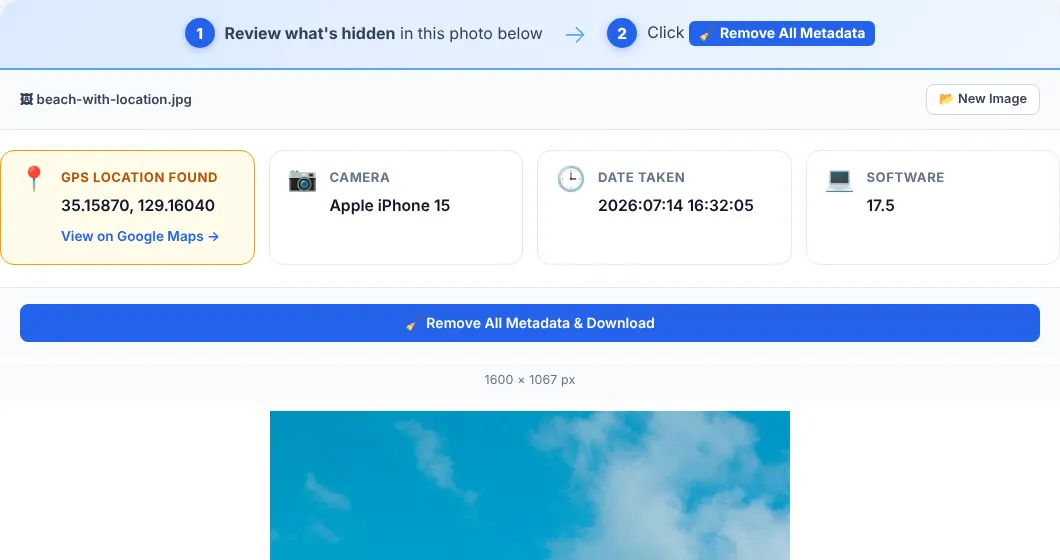
Screenshot of the actual tool. The location and camera data were added to this sample photo for the demo.
→ Check your photo with the free Magic Metadata Remover — runs in your browser, nothing is uploaded.Step-by-step
- Open the tool. Go to Magic Metadata Remover and upload the photo you're about to share.
- Review what's found. If GPS coordinates are present, a map link shows you the exact location that would be exposed.
- Click Remove All Metadata if you'd rather not share it, and download the clean version.
- Share the clean file — same photo, no hidden location, camera, or timestamp data.
Frequently asked questions
How do I know if a specific photo has GPS data without guessing?
Open the file in a tool that reads EXIF metadata and shows you what's actually stored — including the exact coordinates, if present — rather than relying on a general rule of thumb.
Doesn't Instagram or Facebook already remove this automatically?
Most major platforms strip GPS EXIF data during upload, yes. But that only protects photos posted through their upload flow — the original file you send by email, text, Airdrop, or a direct link keeps its metadata intact.
Does removing metadata change how the photo looks?
No. Metadata is separate from pixel data. Stripping it removes the hidden text and location tags only — the visible image is identical.
Is it free to check and remove?
Yes — no account, no upload, no watermark.
Also need to hide a face or license plate that's actually visible in the photo, not just hidden in the metadata? Our guide to blurring faces in group photos covers that separate part of photo privacy.
Not sure a photo is safe to send? Check it with Magic Metadata Remover before you share it.